
There are exactly two ways back into a locked Galaxy A8s, and which one you need depends entirely on whether Find My Mobile was switched on before you got locked out. One path costs you nothing. The other wipes the phone. Here is how to tell which applies to you, and how to run either one.
Check This First: Do You Have a Samsung Account Signed In?
Before anything else, think back, did you ever sign into a Samsung account on this Galaxy A8s? If yes, there is a real chance Find My Mobile is already active in the background even if you do not remember turning it on, since Samsung enables it by default on setup for a lot of regions. That single detail decides everything below, so it is worth actually trying Method 1 first even if you are not sure.
Method 1: Unlock Remotely With Find My Mobile (No Data Loss)
This only works if Find My Mobile was switched on before your phone got locked. You will need a second device, a laptop, tablet, or a friend phone.
- On any other device, go to findmymobile.samsung.com and sign in with the same Samsung account that is on your locked Galaxy A8s
- Once logged in, your Galaxy A8s should appear on the left side under your registered devices
- Select it, then look for Unlock in the menu on the left
- Confirm the action when prompted, this removes the current PIN, pattern, or password entirely
- On the phone itself, it should now boot straight to the home screen with no lock
Once you are back in, go set up a new lock screen password immediately from Settings before you forget again, and this time, actually check that Find My Mobile is toggled on under Settings, Security and privacy, Find My Mobile, it saves you next time.
Method 2: Factory Reset Through Recovery Mode (Erases Everything)
If Find My Mobile was not active, or you are not signed into any Samsung account, this is the only remaining option. Be clear on what this does before you start, it removes your photos, apps, messages, and everything else stored locally. If you have a Samsung Cloud or Google backup running, most of your data can come back afterward, but there is no way to unlock the phone and keep your data at the same time through this method.
I tested this exact sequence on my own Galaxy A8s before writing this, since the button timing on newer Samsung models trips people up more than it should.
- Plug in a USB cable and connect the phone to a computer or laptop if you have one nearby, if not, a charger works fine too
- Press and hold Volume Down + Power together until the device powers off. If it is connected to a computer, you will usually hear the disconnect sound the moment it shuts down. If not, just wait until the screen goes fully black, once the phone is locked, you cannot turn it off or restart normally, so this step needs to run its course
- Let go of the first button only, and keep holding Power
- Now press and hold Volume Up + Power together until the device boots into recovery mode
- In recovery mode, use the volume buttons to scroll to Wipe data/factory reset, then press Power to select it
- Scroll to Factory data reset and confirm with Power again
- Wait for the formatting to finish, then select Reboot system now

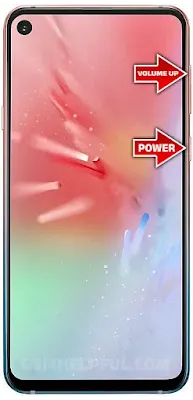

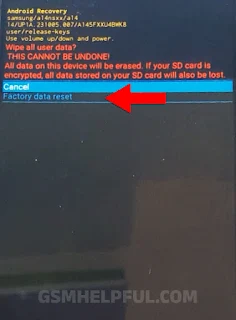
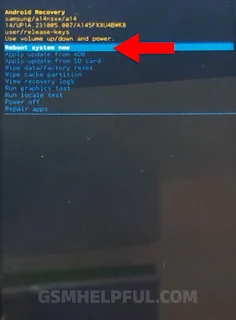
Give it a few minutes after it restarts, most Samsung phones take 10-15 minutes to fully reboot and settle into their optimized state on the first boot after a reset, so do not panic if it feels slower than usual right after. Once it is up, go through setup again, and if you had Samsung Cloud backup enabled previously, you will get the option to restore your apps and photos during that same setup process.
Prefer to Watch It Instead?
Here is a quick video walkthrough covering the same steps on the Galaxy A8s:
What If Recovery Mode Also Asks for a Password?
On some Galaxy A8s units, if Factory Reset Protection (FRP) is active, the phone will ask you to sign into the previous Samsung or Google account after the reset finishes, before letting you use it at all. This is a security feature, not a bug, it exists to stop someone else from wiping a stolen phone and using it. If this happens and it genuinely is your phone, you will need to sign in with the same Samsung or Google account that was on it before the reset to get past this screen.
Frequently Asked Questions
Q: Will Samsung support unlock my phone for me if I explain I am the owner?
A: No. Samsung does not remotely unlock devices through customer support even with proof of purchase, since this would defeat the entire purpose of the lock. Find My Mobile and factory reset are the only two paths.
Q: I tried Find My Mobile and my device is not listed. What now?
A: This usually means either you are signed into a different Samsung account than the one on the phone, or Find My Mobile was never enabled on this device. If you are sure it is the right account, wait a few minutes and refresh, newly locked devices sometimes take a moment to show their real-time status.
Q: Does a factory reset remove the SIM lock or carrier lock too?
A: No, those are separate. A factory reset only clears your screen lock and personal data. If your Galaxy A8s is also carrier-locked, that requires an unlock request through your carrier separately.


0 Comments
Write Your Problem in the Below Comment Box