
Is your Samsung Galaxy A57 5G (SM-A576B) running slow, freezing, or are you locked out because you forgot your password? A hard reset (also known as a factory reset) is the most effective way to restore your device to its original out-of-the-box condition.
In this guide, we will walk you through the step-by-step process of performing a hard reset using hardware keys and the settings menu. We will also cover important precautions to take before you begin.
Samsung Galaxy A57 5G Specifications Overview
| Feature | Details |
|---|---|
| Model Name | Samsung Galaxy A57 5G |
| Models | SM-A576B, SM-A576B/DS, SM-A576Q, SM-A576U1, SM-A576W, SM-A576Z, SM-A5760 |
| Reset Type | Hard Reset / Factory Data Reset |
Method 1: Hard Reset using Hardware Keys (Recovery Mode)
This method is best if you are locked out of your phone or if the touch screen is unresponsive. Because modern Samsung phones have enhanced security, you may need to connect your phone to a PC or use Type-C earphones to enter Recovery Mode.
- Turn off your Samsung Galaxy A57 5G completely.
- Connect your phone to a Computer/Laptop via a USB cable (this is often required for Android 14/15 based One UI).
- Press and hold the "Volume Down + Power" buttons simultaneously until the device powers off. You may hear a sound from your computer indicating the shutdown if your phone connect with Computer or Laptop, if don't have that then wait until phone turn off, when your phone locked then you can't turn off phone or restart.
- Release the "Volume Down" button while continuing to hold the "Power" button.
- Press and hold the Volume Up + Power Button at the same time.
- When the Samsung logo appears, release both buttons. Your phone will enter Recovery Mode.
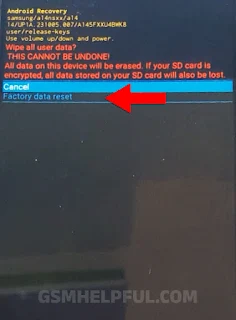
- Use the Volume buttons to navigate to "Wipe data/factory reset".
- Press the Power button to select it.
- Confirm by selecting "Factory data reset" and press the Power button again.
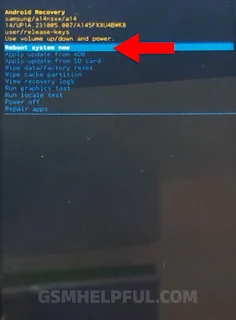
- Wait for the process to finish, then select "Reboot system now".


Method 2: Factory Reset via Settings Menu
If you can access your phone’s home screen, this is the safest and easiest way to reset your device.
- Open the Settings app.
- Scroll down and tap on General Management.
- Select Reset.
- Tap on Factory data reset.
- Review the information and tap Reset (you may be asked for your PIN or Pattern).
- Tap Delete All to confirm.
Things to Remember After the Reset
1. Google Device Protection (FRP)
Samsung Galaxy A57 5G comes with Factory Reset Protection (FRP). After the reset, you must log in with the Google Account previously used on the device. If you don't know the credentials, you will be stuck on the activation screen.
2. Performance Boost
A hard reset is a great way to clear "system junk" and cache files that accumulate over time. If your SM-A576B was lagging, it should feel significantly faster now.
3. Restore Backup
During the initial setup, you can sign in to your Samsung or Google account to restore your backed-up photos, contacts, and messages.
how to Unlock Pattern on Samsung: video
Frequently Asked Questions (FAQs)
Q: Will a hard reset remove my SIM lock?
A: No, a hard reset only deletes user data. It does not unlock your network provider or SIM lock.
Q: How long does the process take?
A: Usually, the wiping process takes 2-5 minutes, and the first boot-up might take an additional 5-10 minutes.
Q: My phone is stuck on the Samsung logo after reset, what should I do?
A: Don't panic. The first boot after a reset takes longer than usual. However, if it stays there for more than 20 minutes, try restarting the recovery process.




0 Comments
Write Your Problem in the Below Comment Box