
In the digital age, our smartphones hold a trove of personal information, from cherished memories to sensitive data. However, there come moments when resetting your device becomes imperative, whether to troubleshoot issues or prepare it for a new owner. Among Samsung's extensive lineup, the Samsung Galaxy S25 Ultra stands out as a popular choice for its affordability and functionality. If you find yourself needing to reset your Samsung Galaxy S25 Ultra, here's a comprehensive guide to walk you through the process.
Before diving into the steps, it's crucial to understand that a hard reset wipes all data from your device and returns it to its factory settings. Therefore, it's advisable to back up any important data before proceeding. Additionally, ensure your device is adequately charged, preferably at least 60%, to prevent any disruptions during the reset process.
Models : SM-S938B, SM-S938B/DS, SM-S938U, SM-S938U1, SM-S938W, SM-S938N, SM-S9380, SM-S938E, SM-S938E/DS
Here's a breakdown of the steps involved in performing a hard reset on the Samsung Galaxy S25 Ultra:
1. Assess Your Phone's Condition:
- If your phone is an older model and is locked with a pattern, you can perform a hard reset using the device's buttons without the need for a USB cable.
- For newer models with advanced security features, connecting a USB cable to your computer or laptop might be necessary to initiate the hard reset process.
2. Preparation:
- Before initiating the hard reset, ensure your phone is charged adequately and that the USB socket is functioning correctly.
3. Backup Your Data:
- Remember, a hard reset will erase all data on your device, so it's essential to back up any important information beforehand.
4. Initiating the Hard Reset:
- Insert a USB cable into your Samsung Galaxy S25 Ultra and ensure it's connected to a computer or laptop (if you don't have that then you can use charger).
- Press and hold the "Volume Down + Power" buttons simultaneously until the device powers off. You may hear a sound from your computer indicating the shutdown if your phone connect with Computer or Laptop, if don't have that then wait until phone turn off, when your phone locked then you can't turn off phone or restart.

- Release the "Volume Down" button while continuing to hold the "Power" button.
- Press and hold the "Volume Up + Power" buttons until the device enters recovery mode.

- Once in recovery mode, navigate using the volume buttons to select "Wipe data/factory reset" and confirm your selection by pressing the "Power" button.

- Next, select "Factory data reset" and confirm.
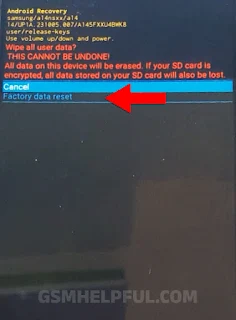
- Wait for the formatting process to complete, and then select "Reboot system now" to restart your device.
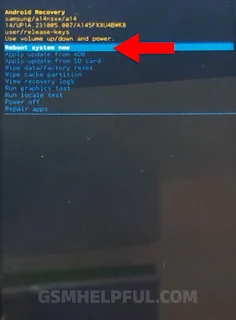
5. Patience is Key:
- After initiating the hard reset, your Samsung Galaxy S25 Ultra may take some time to reboot and optimize its settings. Be patient during this process, which typically takes 10-15 minutes.
6. Google Account Verification:
- After the reset, you may be prompted to enter your Google account information associated with the device. This is a security measure to ensure the device's authenticity and prevent unauthorized access.
By following these steps, you can successfully perform a hard reset on your Samsung Galaxy S25 Ultra, restoring it to its factory settings. However, it's essential to exercise caution and ensure you're comfortable with the process, as resetting your device will result in the permanent loss of all data.
If you encounter any difficulties or have further questions, feel free to reach out for assistance. Remember, it's always better to be cautious and prepared when undertaking such procedures to avoid any unexpected issues.
how to Unlock Pattern on Samsung: video
Topic Covered:
- Samsung Galaxy S25 Ultra hard reset
- Samsung Galaxy S25 Ultra hard reset not working
- Samsung Galaxy S25 Ultra hard reset key
- Samsung Galaxy S25 Ultra hard reset without password
- Samsung Galaxy S25 Ultra hard reset keys
- Samsung Galaxy S25 Ultra hard reset forgot password
- Samsung Galaxy S25 Ultra hard reset button
- how to Samsung Galaxy S25 Ultra hard reset
- Samsung Galaxy S25 Ultra hard reset 2025
- Samsung Galaxy S25 Ultra hard reset unlock tool
- Samsung Galaxy S25 Ultra hard reset 2025
- Samsung Galaxy S25 Ultra hard reset option not showing


0 Comments
Write Your Problem in the Below Comment Box